


Many of you might have known HeyGen, Synthesia, which can be used to make a digital twin of yourself and create explainer videos. That’s not new anymore. The latest technology can place yourself in any scene, like a superman suite, aerial space, or celebrity party, with only one photo.
In this post, we will show you how to create AI images of yourself and animate them as you wish. You don’t need any technical skills because all the tools involved are extremely easy to use. Moreover, you don’t need to break the bank because each generation costs less than $0.5. Let’s dive into the details.
Table of Content

Check & Customize More Free Video Templates >
Can't Miss: How to Remove & Replace a Person from Photo >
Part 1. How to Create AI Images of Yourself
It is easier than ever to create an AI image. When it comes to photos with consistent characters, there are lots of good options. Try FlexClip, where you have access to the most advanced AI models like Nano Banana, Flux, Seedream, OpenAI, etc. in a fair price. Each of them can generate AI images of yourself without tweaking any facial details.

Step 1. Pick a Model
Turn to FlexClip's AI Image Generator page, which you can turn your image and prompt into a brand new one. We strongly suggest you stick to Google Nano Banana 2. Seedream 5 and OpenAI are great options too.
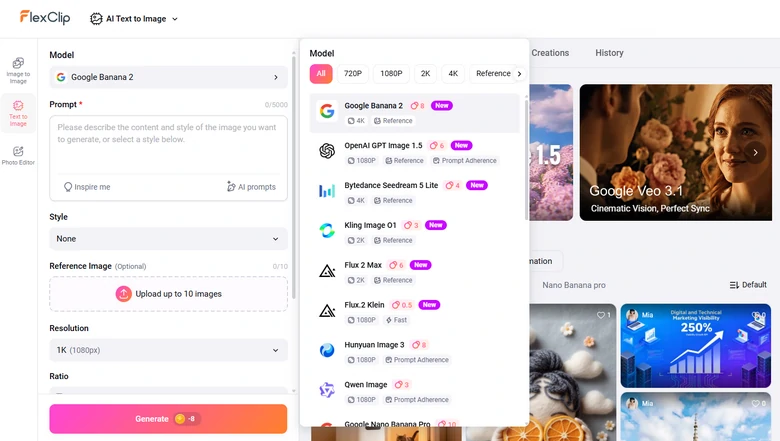
Choose an AI Image Model
Step 2. Upload Reference Image & Enter Prompt
Enter a prompt describing the AI image you love, then upload a photo of yourself. You can upload multiple reference images if you feel like bringing in multiple elements to your AI images.
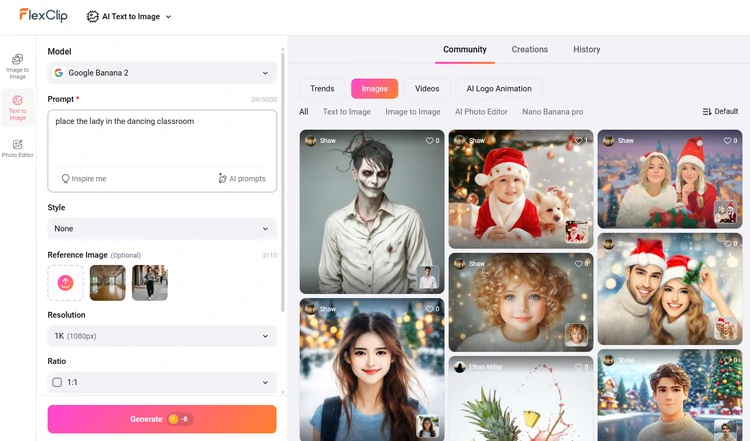
Upload Reference Images & Enter Prompt
We uploaded two reference images. The prompt we used is: place the lady in the dancing classroom.
Step 3. Generate Images
Make basic setups like image aspect ratio, generation style, image count, then hit Generate. Your images should be ready within several seconds.
Step 4. Export & Share
Preview the output. If you are happy with it, share via a short link, post directly to social media, or use it for your video project.
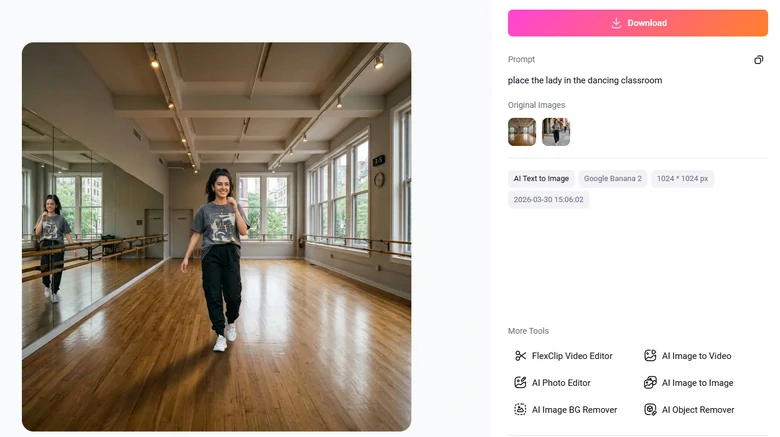
Generate AI Image of Yourself
Part 2. How to Create AI Videos of Yourself
Of course you can animate your AI photo using advanced models like Veo 3.1, Seedance 2.0. Yet here is a problem. AI might misunderstand your prompt, or generate movements that don't match real physical world.
Kling 3.0 does a great job in motion control. It transfers motion, expressions, and movements from your reference video to photo. Here is how we access and use Kling 3.0.
Step 1. Access Kling 3.0
FlexClip's Video Generator integrates with 26 video generation models, including Kling 3.0. Access FlexClip's Image to Video tool, select Kling 3.0 model to get started.
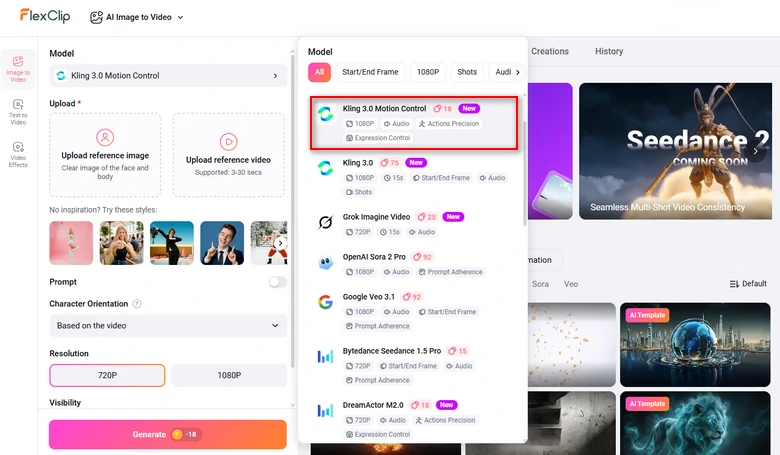
Choose Kling 3.0 Model
Step 2. Upload Reference Image & Video
Select reference image and video from a local folder and upload to FlexClip. Drag and drop will also do.
Step 3. Generate
Hit the Generate button. Preview the AI video of yourself within several minutes. Here is the output.
Preview the Result
FAQs About Creating AI Images/Videos of Yourself
1. How much does it cost to generate an AI video of yourself?
It is extremely cheap to generate AI videos of yourself with Replicate and FlexClip. Each generation using the Flux Pulid model costs around $0.023. As for FlexClip, each generation using the Professional model costs 7 credits per second, which is around $0.23.
2. Is it ethical to use AI to create videos of myself?
Ethically, it is important to ensure you’re using AI responsibly, especially in the case of deepfake technology. You should always avoid using AI videos in a way that may mislead or harm others.
3. How can I ensure my AI video doesn’t look fake or awkward?
To achieve a natural-looking AI video, it is essential to use high-quality photos, choose a reliable AI tool, and take time to fine-tune settings like facial expressions, voice tone, and movement speed.




FlexClip AI Video Maker
Reach professional-quality videos faster with easy editing tools, templates, and smart AI.
Start Now for Free
Hot & Trending
-

Best Ways to Find Music in YouTube Videos
-

Instagram Story Video Quality Bad After Upload? Fix It!
-

How to Repost Video on TikTok & How to Remove TikTok Repost
-

Improve Video Quality Online: 3 AI Video Quality Enhancers You Can't Miss
-

4K Convert to HD 1080p without Watermark: Best 4k Video Converters
-

Best 8 Free Video Editors - No Download Required
-

Top 13 Birthday Video Makers with Music and Effects Free
-

How to Search Filters on TikTok & Use a Filter You See - TikTok Filter Guide




